Your clock and calendar, right on the home screen
Easy Clock is the simplest way to check the time and today’s date. Put a widget on your home screen and you can see both without ever opening the app.
Already on your phone? Tap the button below to open the Play Store.
Free · No ads · No internet permission · Android 10+
Install it on your phone
Scan with your phone camera
A look at the app
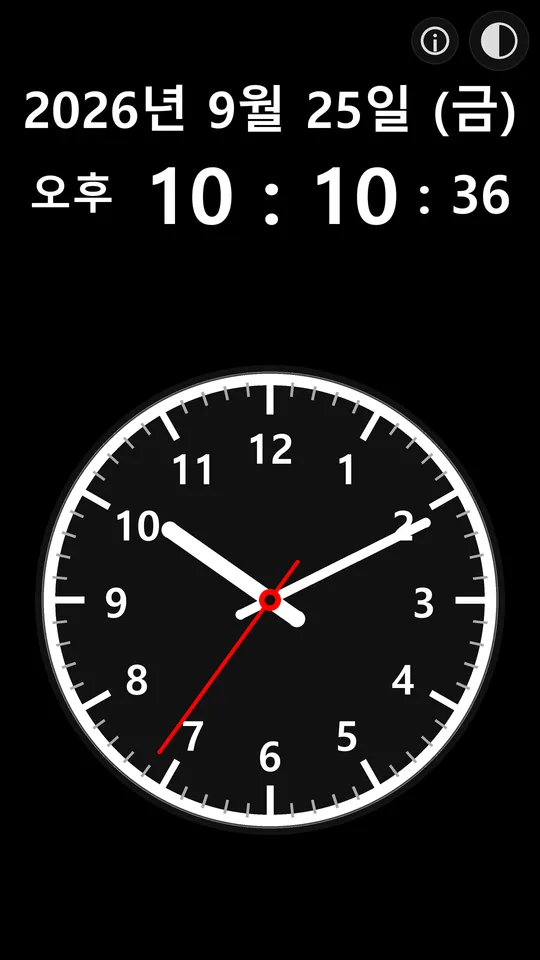
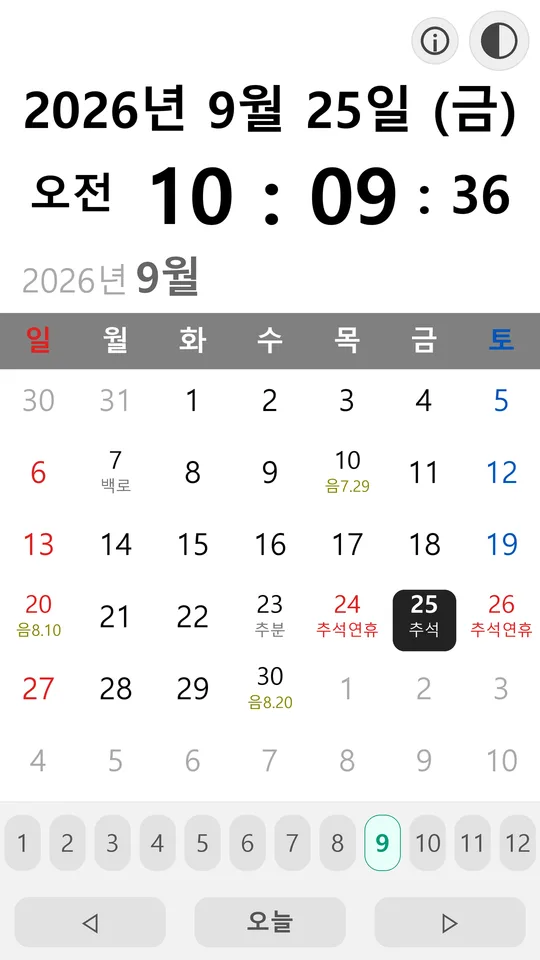
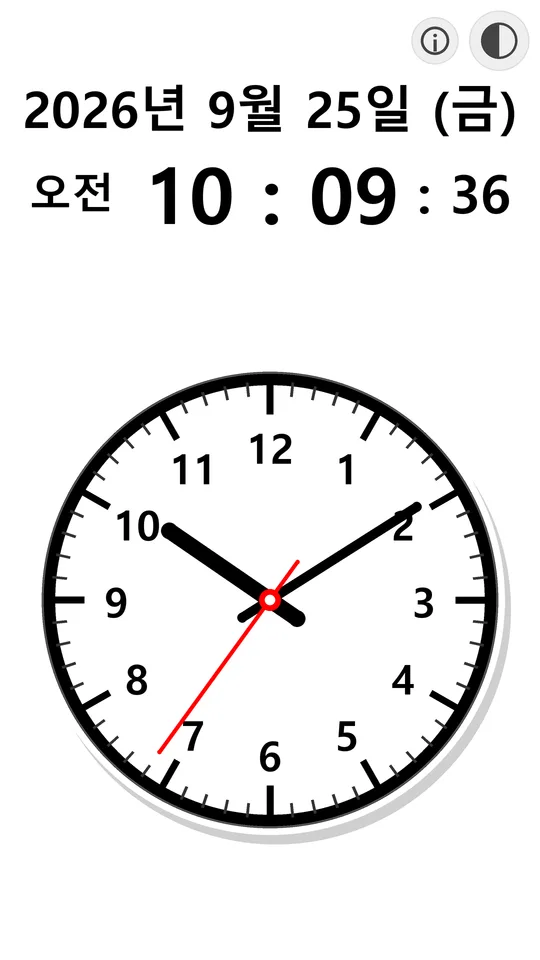
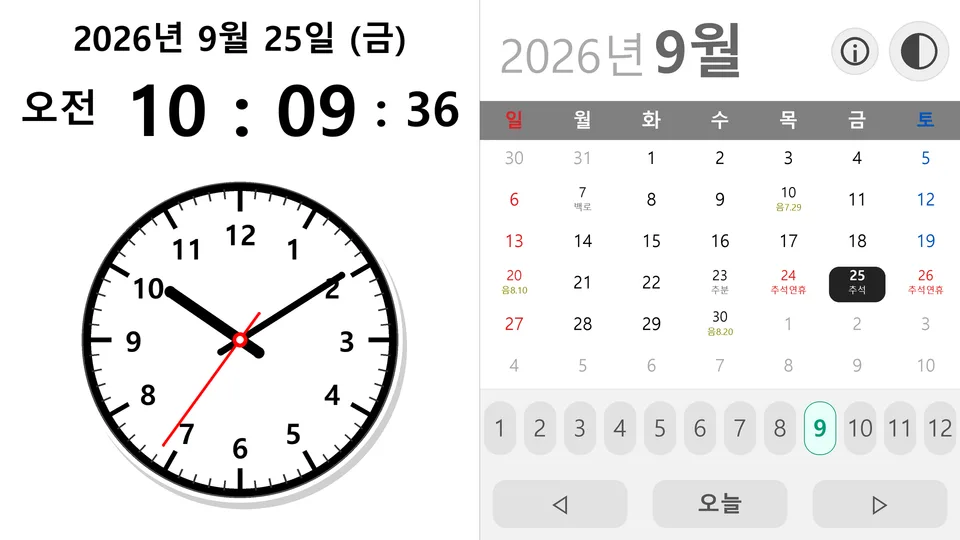
Real screens from the app — night and day colours, the calendar, and the landscape layout.
Key features
No clutter — only the things you actually need.
Analog and digital clock
An analog clock and a digital clock share one screen, so the time reads clearly even from across the room.
Lunar dates, solar terms, holidays
The calendar shows lunar dates, the 24 solar terms, and Korean public holidays, so you can tell at a glance what kind of day it is.
Six home-screen widgets
Choose from clock and calendar widgets in day and night colours — six in all — and place them on your home screen.
Auto, day, and night colours
One button cycles auto → day → night. Auto switches between the light and dark palettes on its own as the hours pass.
Survives a reboot
Widgets stay exactly where you put them after the device restarts. There is nothing to set up again.
Tablets and landscape
The layout adapts to tablets, landscape orientation, and split screen. On a phone in split screen you swipe through three pages.
Six home-screen widgets
An analog clock, a digital clock, and a calendar, each in a day and a night colour. The colour is fixed when you place the widget, so feel free to put up more than one combination.
Day theme — for light wallpapers
Analog clock · Day
Digital clock · Day
Calendar · Day
Night theme — for dark wallpapers
Analog clock · Night
Digital clock · Night
Calendar · Night
- 1Touch and hold an empty spot on your home screen
- 2Find Easy Clock in the widget list
- 3Drag the widget you want onto the screen
Widgets keep running after you restart your device.
No internet permission at all
Easy Clock never asks for internet permission. With no route out to the network, there is nothing to collect and nothing to send. We left out ads and analytics too, and there is no account to create — install it and start using it.
Install Easy Clock today
It’s free. No sign-up, no setup.
Scan with your phone camera